Showing posts with label PC portables. Show all posts
Showing posts with label PC portables. Show all posts
MICROSOFT SURFACE BOOK – ULTRA HIGH-END TABLET/LAPTOP HYBRID
KEY FEATURES
- Bundled keyboard dock and Surface Pen
- Optional secondary NVIDIA GeForce GPU
- Intel Core i5 or i7 CPU
- 13.3-inch PixelSense display
- 8GB or 16GB RAM
- 8-megapixel rear, 5-megapixel front cameras
- Manufacturer: Microsoft
- Review Price: £1,300.00
Update: Since my original review of the Surface Book, Microsoft has released a number of firmware updates for various issues that many users encountered. Like with the Surface Pro 4, I didn't experience all of the problems that were listed, but among units sold to the public there appeared to be a large number of problems relating to battery drain, system stability and performance.
Recent updates include improved performance and stability when switching between laptop and tablet mode, with battery life also apparently improved when making the transition between laptop and tablet.
Various patches have been released for the onboard Intel HD Graphics 520, too, which should make a difference to stability. A big one for some users will be improved battery life while the laptop is asleep with various onboard sensors and drivers wrangled into line to prevent them from draining the battery.
There's also been patches that improve stability on the Nvidia GPU, although it's unclear whether this will fix the problems around games being powered by the wrong graphics chip.
The full list of changes can be found on Microsoft's Surface Book update history page. I haven't had a review unit in recently so I can't verify whether the patches Microsoft has issued have actually worked, but we will be requesting a unit so we can check for ouselves. You can read my original review below.
Buy Now: Surface Book at Amazon.co.uk (£1,295) | Amazon.com ($1,349)
WHAT IS THE SURFACE BOOK?
Microsoft’s Surface range of tablets has steadily been growing a huge following since the US powerhouse started shipping the devices in 2012. And for reasons that go beyond monstrous amounts of marketing and product placement.
The 2015 Microsoft Surface Pro 4 offered top-end specifications within a neat portable design and is, in my opinion, the ultimate productivity tablet at the moment. However, its usability as a laptop is marred by its lack of a dedicated GPU and bundled keyboard – the Type Cover keyboard accessory still costs over £100 extra.
The Surface Book, on paper, fixes these flaws, and is being marketed by Microsoft as a laptop first and a tablet second. But with pricing for the most basic version starting at £1,300, can it justify its hefty upfront cost?
SURFACE BOOK – DESIGN
Since the Surface Pro 3, Microsoft’s really come into its own on the design front, which is why I’m pleased it hasn’t rocked the boat too much with the Surface Book.
From a distance you’d be forgiven for mistaking the tablet section of the Surface Book for the Surface Pro 4. The device’s chassis is built of the same grey magnesium, with the only obvious design feature being a shiny Windows logo on its back.
Up close, however, you’ll notice a few key changes. For starters, it's a little larger than the Pro 4, measuring in at 7.7mm thick and 312 mm wide – dimensions that place it in roughly the same size bracket as a 13-inch Macbook.
Microsoft’s also ditched the Pro 4’s kickstand to make way for the Surface Book’s biggest feature – its detachable keyboard dock. Unlike past Surface models, the Book comes bundled with a full-on physical keyboard, not relying on an optional Type Cover.

The keyboard houses the Surface Book’s most interesting feature: an optional secondary NVIDIA GeForce GPU. The GPU activates when the tablet section is docked in the keyboard, and in theory will radically improve performance. When undocked the Surface Book’s tablet section runs using the lower-power Intel HD graphics.
The dock also houses the Surface Book’s primary battery and the lion’s share of its ports – a point that further emphasises the focus on being a laptop first, tablet second. Ports-wise, the Surface Book is pretty well stocked when you consider its tiny dimensions. Along the dock’s sides you’ll find two USB 3.0 ports, an SD card reader, a Mini DisplayPort, a headphone jack and a proprietary charging socket.
The sleak dimensions and wealth of connectivity options make the Surface Book feel unashamedly premium and, in my mind, one of the nicest-looking convertibles around.
SURFACE BOOK – KEYBOARD AND TRACKPAD
The physical keyboard is another neat addition. I personally didn’t have an issue with the Surface Pro 4’s Type Cover, but understand many did. For starters, the Type Covers are paper thin and aren’t weighted, which meant using a Pro 4 on your lap is something of a balancing act. Many people also didn’t click with the touchpad, feeling they were too small and slightly unresponsive.
By comparison the Surface Book’s backlit keyboard is an entirely physical, metal affair, more akin to Asus Transformer Books’ docks than past Type Covers. The keyboard is a definite step up and offers a significantly improved typing experience. This is largely down to the keys' improved travel and spacing.

The more comfortable typing experience is aided by the Surface Book keyboard's intelligent hinge. The hinge has been designed to evenly adjust the Surface Book’s weight balance to ensure it doesn’t become top heavy, irrespective of the screen’s angle. The design works a treat and means it's one of the most lap-friendly convertibles around.
My only issue with the keys is that they aren’t quite as tactile as I’d like, compared to, say, the Asus Transformer Book T300 Chi or Dell XPS 12. With prolonged or rapid typing the keys feel a little spongy and aren’t quite as reactive as I’d like – though, being fair to Microsoft, this is an issue I have with most laptops and convertibles.
The trackpad’s also been improved. As well as being larger, the glass-finished pad feels more responsive and accurate than its Type Cover siblings. Two finger gestures work a treat and in general I have no issues using it.
SURFACE BOOK – DISPLAY
The Surface Book’s screen has also had a modest makeover. Microsoft’s increased the Surface Book’s PixelSense screen size to 13.3 inches, making it over an inch bigger than the Surface Pro 4’s.
For general consumers the screen is brilliant. The 3,000 x 2,000 resolution and 267ppi pixel density mean icons and text are constantly sharp. Brightness levels and viewing angles are stellar and I didn’t notice any backlight bleed.
Cracking out my trusty colorimeter, I found the Surface Book’s screen also to be well calibrated. The 1,750:1 contrast ratio I recorded is great and means the screen can display suitably nice deep and inky blacks alongside clear, unmuddied whites.

The 6,377K colour temperature I recorded is less than 200K away from the 6,500K ideal – meaning colours don’t look overcooked or too cool to the naked eye. The Surface Book’s 0.19 Delta E is stellar – any score floating around or below 1.0 indicates excellent colour accuracy. The screen’s 94.3% sRGB colour gamut coverage is above average, and more than wide enough to meet general users' needs.
My only issue with the Surface Book’s screen is its average coverage of the Adobe RGB colour gamut. For non-techie folks, the Adobe RGB is a standard used by many creative professionals that dictates the range of colours a screen can accurately display. As a rule of thumb any serious art or photography display should cover 90% or above of the Adobe RGB. The Surface Book only covers 67.6% of the Adobe RGB.
Being fair, Microsoft’s never made any claims about the Surface Book’s Adobe RGB coverage, but when you consider the fact that it’s marketing the device as “ideal for creatives” I’m still a little disappointed. Hopefully Microsoft will fix this issue with its next wave of Surfaces.
lenovo Ideacentre AIO 910

WHAT IS THE LENOVO IDEACENTRE AIO 910?
How an all-in-one computer looks and feels is almost as important as its raw specs and the quality of the screen. After all, these types of computer sit out on display, so they need to look as good as they perform. It's good to see PC manufacturers acknowledge this, with a spate of good-looking all-in-one computers hitting the market.
The latest is the Lenovo Ideacentre AIO 910, which combines an attractive case and speedy components with a smart stand that lets you lay the screen parallel with your desk, making the touchscreen easier to use.
LENOVO IDEACENTRE AIO 910 – DESIGN AND BUILD
Lenovo continues its impressive run with another great-looking all-in-one. The case is of a metal-effect plastic, but the quality is high, and you'll be hard-pushed to distinguish the finish from true metal using sight alone.
Rather than building the components into the main unit, Lenovo has fitted them into a stylish base. It means that the screen is impressively slim and the ports easy to reach; you don't have to spin the entire computer around to get to them, as you do with an iMac. The minor downside is that the PC takes up a little more space on your desk, measuring 238 x 616 x 490mm
At the rear of the computer you'll find the power connection, Gigabit Ethernet (802.11ac Wi-Fi is also available), 3.5mm headset jack, and a single USB 3.0 port. This USB port is taken up by the wireless keyboard and mouse's dongle. This is frustrating; I'd have preferred Lenovo to have used a Bluetooth set instead.

On the side of the case are an HDMI input, three USB 3.0 ports and a card reader. Although Lenovo's website states that this is an SD card reader, it isn't: the small slot is for microSD cards only. Digital camera owners will be disappointed; a full-size SD card slot would have been better.

It's the smart stand that will really grab your attention, since it lets you move the screen from an angle of -5 to 90 degrees. It's rare to find an all-in-one with this level of adjustment, making it easy to line up the 910 comfortably, whether you're using it normally or just with the touchscreen.
LENOVO IDEACENTRE AIO 910 – KEYBOARD AND MOUSE
Lenovo has bundled its standard wireless keyboard and mouse, first seen with the Lenovo Ideacentre AIO 510S.
The keyboard remains one of the best bundled models I've used. While the keys are a little softer than on the best of Lenovo's laptop models, they're responsive and offer decent travel. Its half-width Return key is a little annoying, and I'd often hit PgUp by mistake. Still, once I got used to the keyboard, I found that I could type quickly and accurately.
 I don't like the mouse very much, since its high arch isn't comfortable to hold. To compensate, I ended up holding the mouse further down the body, which made reaching the slightly unresponsive buttons hard.


LENOVO IDEACENTRE AIO 910 – SCREEN AND SPEAKERS
The glossy display is the highlight of the computer. This 27-inch, Ultra HD screen (3,840 x 2,160 pixels) has plenty of room for displaying multiple applications at once.
Image quality is superb, too. I measured the screen as able to produce 99.4% of the sRGB colour gamut. A black point of 0.295 nits gives you dark blacks, but 265 nits brightness is touch on the dim side. This results in a contrast ratio of 909:1, which is a touch low. In real-world terms, what you see on-screen is accurate, but you lose a little punch and vibrancy.
With the HDMI input, you can even plug in other devices. I was told by Lenovo that HDMI 2.0 (HDCP 2.2) is used, but plugging in a Sky Q box running at Ultra HD didn't work; plugging in a regular Full HD Blu-ray player worked properly, however. It's a minor shame that 4K devices didn't work with the display, although this probably isn't a huge issue for a lot of people.
Lenovo has fitted a full touchscreen display. Normally, I'm not a huge fan of them in an all-in-one, since it's a pain having to reach across the desk. With the 910's smart stand, however, it's easier to get the screen closer, making the touchscreen handy for swiping through photos and the like.
Lenovo's Dolby Home Theatre-tuned speakers are excellent. Loud and powerful in both music and films, the 910 can provide room-filling audio. Bass is a little lacking, but that's a minor complaint; ultimately, I'd see very little need to hook up a pair of external speakers to this computer.
The glossy display is the highlight of the computer. This 27-inch, Ultra HD screen (3,840 x 2,160 pixels) has plenty of room for displaying multiple applications at once.
Image quality is superb, too. I measured the screen as able to produce 99.4% of the sRGB colour gamut. A black point of 0.295 nits gives you dark blacks, but 265 nits brightness is touch on the dim side. This results in a contrast ratio of 909:1, which is a touch low. In real-world terms, what you see on-screen is accurate, but you lose a little punch and vibrancy.
With the HDMI input, you can even plug in other devices. I was told by Lenovo that HDMI 2.0 (HDCP 2.2) is used, but plugging in a Sky Q box running at Ultra HD didn't work; plugging in a regular Full HD Blu-ray player worked properly, however. It's a minor shame that 4K devices didn't work with the display, although this probably isn't a huge issue for a lot of people.
Lenovo has fitted a full touchscreen display. Normally, I'm not a huge fan of them in an all-in-one, since it's a pain having to reach across the desk. With the 910's smart stand, however, it's easier to get the screen closer, making the touchscreen handy for swiping through photos and the like.
Lenovo's Dolby Home Theatre-tuned speakers are excellent. Loud and powerful in both music and films, the 910 can provide room-filling audio. Bass is a little lacking, but that's a minor complaint; ultimately, I'd see very little need to hook up a pair of external speakers to this computer.
LENOVO IDEACENTRE AIO 910 – WEBCAM AND MICROPHONE
An Intel RealSense 3D camera is mounted into the top of the 910's screen. It works in a similar way to the Xbox Kinect, allowing you to control compatible apps using gestures. It's more of a gimmick, and the range of supported apps isn't particularly good. There is one useful feature, however: it supports Windows Hello, enabling you to unlock your computer with your face.
If you want to make video calls then the webcam shoots pretty good video, while the integrated microphone picked up my voice clearly.
An Intel RealSense 3D camera is mounted into the top of the 910's screen. It works in a similar way to the Xbox Kinect, allowing you to control compatible apps using gestures. It's more of a gimmick, and the range of supported apps isn't particularly good. There is one useful feature, however: it supports Windows Hello, enabling you to unlock your computer with your face.
If you want to make video calls then the webcam shoots pretty good video, while the integrated microphone picked up my voice clearly.
LENOVO IDEACENTRE AIO 910 – PERFORMANCE
 Lenovo has used a quad-core Intel Core i5-6500T processor. It has a base clock of 2.2GHz and a Turbo frequency of 2.8GHz. The "T" designates this as a low-power chip, which has a thermal design power (TDP) of just 35W. As a comparison, the regular Core i5-6400, found in larger desktops, has a TDP of 65W, a base clock of 2.7GHz and Turbo frequency of 3.3GHz.
Combined with 16GB of RAM, the Lenovo Ideacentre 910 managed a Geekbench Multi-core score of 7,940 and a PCMark 8 Home score of 2,879. This processor makes this all-in-one slightly faster than similar computers that use ultra-low-power CPUs; but, it's around 28% slower than PCs with a full Core i5-6400 CPU.
General day-to-day tasks and photo editing are easy on this computer, but if you want a more powerful workhorse – for video 4K editing, for example – you probably want to look elsewhere.
Lenovo has used an Nvidia GeForce 950A discrete graphics chip fitted with 2GB of GDDR5 memory. It's largely the same as the more common 950M chip found in laptops, featuring a 915MHz clock speed and 640 CUDA cores.
While it can't handle games at the screen's full 4K resolution, Full HD gaming is more than possible. Dirt Rally managed an average frame rate of 28.64fps running at Ultra detail, but dropping detail down to Medium upped the frame rate to a smoother 53.5fps. Shadow of Mordor ran at a smooth 34fps, while GTA V ran at 42.2fps. That's good news if you want an all-in-one that can handle games as well as work.
Lenovo has fitted a 128GB SSD and 1TB mechanical hard disk. The SSD is best used for Windows and general applications, but I recommend using the 1TB hard disk for games and file storage. Although the SSD isn't one of the fastest I've seen (I measured read speeds of 512.8MB/sec and write speeds of 158.1MB/sec), it's faster than a mechanical hard disk and makes Windows 10 feel responsive.
Lenovo has used a quad-core Intel Core i5-6500T processor. It has a base clock of 2.2GHz and a Turbo frequency of 2.8GHz. The "T" designates this as a low-power chip, which has a thermal design power (TDP) of just 35W. As a comparison, the regular Core i5-6400, found in larger desktops, has a TDP of 65W, a base clock of 2.7GHz and Turbo frequency of 3.3GHz.
Combined with 16GB of RAM, the Lenovo Ideacentre 910 managed a Geekbench Multi-core score of 7,940 and a PCMark 8 Home score of 2,879. This processor makes this all-in-one slightly faster than similar computers that use ultra-low-power CPUs; but, it's around 28% slower than PCs with a full Core i5-6400 CPU.
General day-to-day tasks and photo editing are easy on this computer, but if you want a more powerful workhorse – for video 4K editing, for example – you probably want to look elsewhere.
Lenovo has used an Nvidia GeForce 950A discrete graphics chip fitted with 2GB of GDDR5 memory. It's largely the same as the more common 950M chip found in laptops, featuring a 915MHz clock speed and 640 CUDA cores.
While it can't handle games at the screen's full 4K resolution, Full HD gaming is more than possible. Dirt Rally managed an average frame rate of 28.64fps running at Ultra detail, but dropping detail down to Medium upped the frame rate to a smoother 53.5fps. Shadow of Mordor ran at a smooth 34fps, while GTA V ran at 42.2fps. That's good news if you want an all-in-one that can handle games as well as work.
Lenovo has fitted a 128GB SSD and 1TB mechanical hard disk. The SSD is best used for Windows and general applications, but I recommend using the 1TB hard disk for games and file storage. Although the SSD isn't one of the fastest I've seen (I measured read speeds of 512.8MB/sec and write speeds of 158.1MB/sec), it's faster than a mechanical hard disk and makes Windows 10 feel responsive.

Cooling isn't too intrusive, but even when idle, the Ideacentre AIO 910 makes a low-level hum from its constantly spinning fans. I'd prefer a silent computer when idle, but without ultra low-power components, this would have been a long shot with the AIO 910.
Note that the model on review here is one of the higher-end Ideacentre AIO 910s (F0C2000TUK), which has a 4K touchscreen and a quad-core Core i5 processor. The same spec is available with a Core i7 processor, too. A cheaper, Full HD non-touchscreen model is an option, too, featuring a choice of Core i5 and Core i7 processors, and graphics options vary by region and retailer, with some getting Nvidia 940M instead of 950A GPUs. The model on test here is most closely matched by this specification sold on Amazon at the time of writing.

Lenovo has used a quad-core Intel Core i5-6500T processor. It has a base clock of 2.2GHz and a Turbo frequency of 2.8GHz. The "T" designates this as a low-power chip, which has a thermal design power (TDP) of just 35W. As a comparison, the regular Core i5-6400, found in larger desktops, has a TDP of 65W, a base clock of 2.7GHz and Turbo frequency of 3.3GHz.
Combined with 16GB of RAM, the Lenovo Ideacentre 910 managed a Geekbench Multi-core score of 7,940 and a PCMark 8 Home score of 2,879. This processor makes this all-in-one slightly faster than similar computers that use ultra-low-power CPUs; but, it's around 28% slower than PCs with a full Core i5-6400 CPU.
General day-to-day tasks and photo editing are easy on this computer, but if you want a more powerful workhorse – for video 4K editing, for example – you probably want to look elsewhere.
Lenovo has used an Nvidia GeForce 950A discrete graphics chip fitted with 2GB of GDDR5 memory. It's largely the same as the more common 950M chip found in laptops, featuring a 915MHz clock speed and 640 CUDA cores.
While it can't handle games at the screen's full 4K resolution, Full HD gaming is more than possible. Dirt Rally managed an average frame rate of 28.64fps running at Ultra detail, but dropping detail down to Medium upped the frame rate to a smoother 53.5fps. Shadow of Mordor ran at a smooth 34fps, while GTA V ran at 42.2fps. That's good news if you want an all-in-one that can handle games as well as work.
Lenovo has fitted a 128GB SSD and 1TB mechanical hard disk. The SSD is best used for Windows and general applications, but I recommend using the 1TB hard disk for games and file storage. Although the SSD isn't one of the fastest I've seen (I measured read speeds of 512.8MB/sec and write speeds of 158.1MB/sec), it's faster than a mechanical hard disk and makes Windows 10 feel responsive.

Cooling isn't too intrusive, but even when idle, the Ideacentre AIO 910 makes a low-level hum from its constantly spinning fans. I'd prefer a silent computer when idle, but without ultra low-power components, this would have been a long shot with the AIO 910.
Note that the model on review here is one of the higher-end Ideacentre AIO 910s (F0C2000TUK), which has a 4K touchscreen and a quad-core Core i5 processor. The same spec is available with a Core i7 processor, too. A cheaper, Full HD non-touchscreen model is an option, too, featuring a choice of Core i5 and Core i7 processors, and graphics options vary by region and retailer, with some getting Nvidia 940M instead of 950A GPUs. The model on test here is most closely matched by this specification sold on Amazon at the time of writing.
SHOULD I BUY THE LENOVO IDEACENTRE AIO 910?
It's hard to find an all-in-one that can do everything, but the Lenovo IdeaCcentre AIO 910 fits the bill. It's excellent 4K display, smart stand and dedicated graphics all make it a desirable and practical choice.
A low-power processor, noise when idle, and slightly slow SSD detract a little – but the AIO 910 will prove fast enough for most people's needs.
Related: Best Desktop PCs
It's hard to find an all-in-one that can do everything, but the Lenovo IdeaCcentre AIO 910 fits the bill. It's excellent 4K display, smart stand and dedicated graphics all make it a desirable and practical choice.
A low-power processor, noise when idle, and slightly slow SSD detract a little – but the AIO 910 will prove fast enough for most people's needs.
Related: Best Desktop PCs
VERDICT
A smart and flexible all-in-one computer – the Lenovo Ideacentre AIO 910 is a great all-rounder.
A smart and flexible all-in-one computer – the Lenovo Ideacentre AIO 910 is a great all-rounder.
Acer Spin 5

Chez Acer, les PC portables hybrides se succèdent et ne se ressemblent pas. Le Spin 5 mise à la fois sur sa souplesse et sur son prix abordable pour convaincre les plus réticents à passer au tactile.
Le Spin 5 d’Acer est l’un des tous derniers PC hybrides de la marque taïwanaise. Il s'agit d'une machine qui vient se positionner sur les premières marches du segment milieu de gamme, puisqu'elle est vendue aux alentours de 600 euros. Son grand frère, le Spin 7, dont le test sera prochainement publié ne nous a pas pleinement convaincus. Espérons que cette version 5 (SP513-51-32S1) fera mieux.

Acer mise à fond sur les hybrides en ce début 2017. Le constructeur en propose à tous les prix, de toutes les formes et les organise en plusieurs familles, dont les Switch et les Spin. Quelle différence ? Les premiers sont des modèles détachables : la tablette d’un côté, le clavier de l’autre. Les seconds sont, eux, des convertibles. L’écran et le clavier sont solidaires, le premier étant monté sur des charnières qui lui permettent d'effectuer une rotation à 360° autour du second. Ce qui est le cas sur Spin 5. Quelle que soit leur famille - celle des détachables ou des convertibles -, tous les Switch et les Spin peuvent être utilisés comme de simples PC portables.
Spin 5 : un PC convertible qui se met en 4 pour vous plaire
Pour les studieux et les travailleurs, le Spin 5, en position de PC portable 13,3 pouces, met à disposition son agréable clavier ainsi que son touchpad, à la surface très réactive. Tous deux sont adaptés à la saisie au kilomètre, à l'exploration de tableurs et à l'élaboration de présentations en tout genre, confortablement.
Cependant, bien qu'Acer ait eu l'excellente idée de rétroéclairer les touches, l'intensité lumineuse de ces dernières demeure bien trop faible ! Ce qui devait être un point fort devient, de fait, un point faible.
Cependant, bien qu'Acer ait eu l'excellente idée de rétroéclairer les touches, l'intensité lumineuse de ces dernières demeure bien trop faible ! Ce qui devait être un point fort devient, de fait, un point faible.

Pour les dingues de multimédia, le Spin 5 peut adopter trois positions différentes et qui mettent l'écran et -donc- la navigation tactile à l'honneur.
La première position, classique, consiste à rabattre le clavier sur le dos de l’écran. Le Spin 5 se transforme alors en tablette géante taillée pour le surf sur Internet l’écoute de morceaux de musique ou le visionnage de vidéos sur la dalle Full HD tactile (1920 par 1080 pixels), avec pilotage au doigt.
La première position, classique, consiste à rabattre le clavier sur le dos de l’écran. Le Spin 5 se transforme alors en tablette géante taillée pour le surf sur Internet l’écoute de morceaux de musique ou le visionnage de vidéos sur la dalle Full HD tactile (1920 par 1080 pixels), avec pilotage au doigt.

Si le poids de 1,5 kg commence un peu trop à se faire sentir sur les bras, pas de souci, le Spin 5 adopte au choix une deuxième position appelée mode « tente » voire une troisième dite mode « support ». Dans le premier cas, l'hybride vient se placer sur une surface (table, bar...), écran tactile face à son propriétaire et orienté selon l’angle souhaité (voir photo ci-dessus). Très pratique pour, par exemple, continuer à regarder une série alors qu’on a les mains plongées dans l’évier. En mode « support », l'écran reste toujours face à l'utilisateur mais le clavier repose contre la surface de la table.
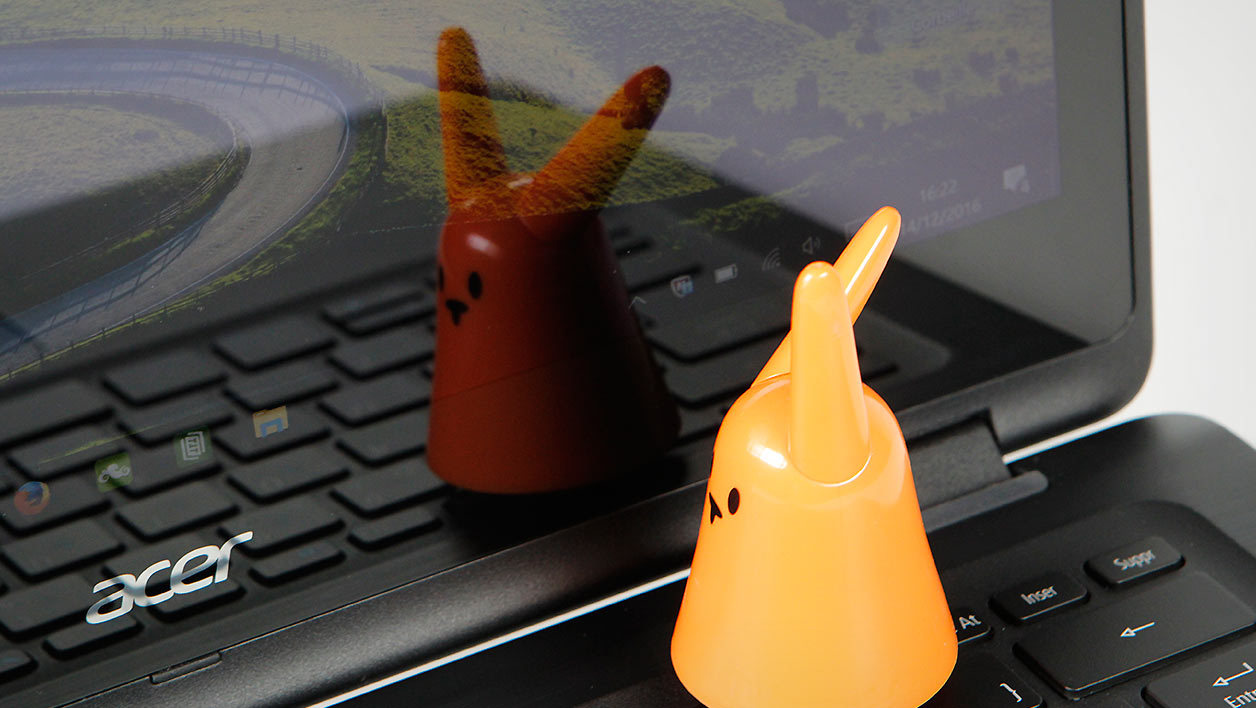
Un mot technique sur l'écran 13,3 pouces pour finir. Celui-ci est brillant, tactile oblige, et après passage sous notre sonde de test, il écope d’une mention « Passable ». Car si le taux de contraste est bon (1240:1), la luminosité reste, pour sa part, en retrait (243 cd/m2 en moyenne). Lutter efficacement contre les reflets « attrapés » par la vitre de protection ne sera pas toujours possible.
Du boîtier à l'équipement, c'est presque un sans-faute
Sur le plan des finitions, le Spin 5 fait forte impression. Pour son prix, le boîtier de ce petit PC hybride ne souffre d’aucun défaut d’assemblage. Il est constitué à la fois de métal anodisé (sur le dos de l’écran) et de bons plastiques, bien rigides et légèrement texturés. L’œil comme la main sont séduits !

Contrairement à son grand frère, le Spin 5 embarque une connectique plein format et relativement diversifiée. En effet, comme le boîtier est un peu plus épais (2,1 cm), il a été plus aisé d’y intégrer des prises USB (2 x USB 2, 1 x USB 3) et même une sortie vidéo HDMI, toutes en plein format. Sans oublier la prise casque, combinant l’entrée micro et la sortie stéréo.

Bonne surprise, Acer a eu l'excellente idée de placer un lecteur de carte microSD sur le flanc droit de l'appareil, au côté du bouton de réglage de volume et de mise sous tension de la machine. A utiliser, par exemple, afin d'augmenter la capacité de stockage de l'engin ou encore décharger les éventuels clichés pris avec un smartphone.
En revanche, on déplore l’absence d’une prise réseau filaire. Pour les mises à jour de Windows 10 et les téléchargements divers, c’est Wi-Fi n/ac obligatoire.
En revanche, on déplore l’absence d’une prise réseau filaire. Pour les mises à jour de Windows 10 et les téléchargements divers, c’est Wi-Fi n/ac obligatoire.
Un PC hybride à qui la mémoire pourra faire défaut
Nous le disions plus haut, la vocation du Spin 5 est d'être le PC portable que l’on utilise pour les tâches informatiques quotidiennes. Pour ce faire, Acer mise sur un assortiment de composants en adéquation avec le prix de la machine.
Le processeur reste tout de même un Intel Core i3-6100U, une puce basse consommation solide, équipée de deux cœurs (quatre threads) qui carburent à 2,3 GHz chacun. En revanche, du côté de la mémoire vive, il faut se contenter de 4 Go de DDR4, le minimum syndical de nos jours. En mettre 6 Go aurait vraiment donné un peu plus de souffle à la machine ! Une petite économie qui, en outre, ternit l’effort fait par Acer de fournir un stockage digne de ce nom à son poulain. Car, au lieu d’un disque dur classique, c'est un bon SSD de 256 Go qui est présent, pour assurer des démarrages rapides de Windows 10 et lancer les logiciels en un clin d’œil.
Ultraportable oblige, les graphismes incombent au contrôleur Intel intégré au processeur. Ses capacités sont assez limitées mais lui permettent, tout de même, de faire du décodage de vidéos (4K compris). Cependant, mieux vaut ne pas compter sur lui pour faire tourner des jeux 3D récents. De plus anciens pourront, en revanche, tourner à condition de baisser la définition (1280 par 720 pixels) et de mettre le moins de détails possible.
Enfin, signalons que nous avons été surpris de constater que la ventilation active de la machine sait se faire extrêmement silencieuse (33,8 dB) même lorsque nous sollicitions fortement l’ensemble de la configuration. Un très bon point.
Le processeur reste tout de même un Intel Core i3-6100U, une puce basse consommation solide, équipée de deux cœurs (quatre threads) qui carburent à 2,3 GHz chacun. En revanche, du côté de la mémoire vive, il faut se contenter de 4 Go de DDR4, le minimum syndical de nos jours. En mettre 6 Go aurait vraiment donné un peu plus de souffle à la machine ! Une petite économie qui, en outre, ternit l’effort fait par Acer de fournir un stockage digne de ce nom à son poulain. Car, au lieu d’un disque dur classique, c'est un bon SSD de 256 Go qui est présent, pour assurer des démarrages rapides de Windows 10 et lancer les logiciels en un clin d’œil.
Ultraportable oblige, les graphismes incombent au contrôleur Intel intégré au processeur. Ses capacités sont assez limitées mais lui permettent, tout de même, de faire du décodage de vidéos (4K compris). Cependant, mieux vaut ne pas compter sur lui pour faire tourner des jeux 3D récents. De plus anciens pourront, en revanche, tourner à condition de baisser la définition (1280 par 720 pixels) et de mettre le moins de détails possible.
Enfin, signalons que nous avons été surpris de constater que la ventilation active de la machine sait se faire extrêmement silencieuse (33,8 dB) même lorsque nous sollicitions fortement l’ensemble de la configuration. Un très bon point.
Le Spin 5 est un bon voyageur
Compte-tenu du faible encombrement, du format et du poids tout à fait corrects du Spin 5, ce dernier peut, bien entendu, vous suivre partout, glissé dans un sac à dos ou une mallette. Et prendre le chargeur secteur (272 grammes) ne sera pas toujours une obligation puisque les scores d’endurance obtenus sont assez bons dans l’ensemble. En lecture vidéo continue comme en utilisation polyvalente, cet hybride Acer tient entre sept heures et sept heures et demie sur batterie avant de montrer des signes de faiblesses.
FICHE TECHNIQUEAcer Spin 5 (SP513-51-32S1)
| Processeur | Intel Core i3-6100U |
| Quantité de mémoire vive | 4 Go |
| Capacité de stockage principal | 256 Go |
| Taille d'écran (pouces) | 13.3 " |
| Processeur graphique | Intel HD Graphics 520 |
processeur core i7 intel 2016

C'est l'été, le soleil donne sur le sable chaud, les vagues ondulent à l'horizon, et Intel lance en pleine torpeur estivale Skylake sa toute nouvelle micro-architecture de processeurs. Un lancement loin d'être anodin pour le fondeur puisque les processeurs Skylake incarnent la sixième génération de processeurs Core.
Sixième... déjà ? Eh oui ! Et là vous vous dites logiquement : « Mais où est donc passée la cinquième génération ? ». Elle existe bel et bien avec les Core M et dans une moindre mesure quelques processeurs Core i5/Core i7 lancés pendant le mois de juin à l'occasion du Computex et basés sur l'architecture Broadwell.
Le fameux modèle « tick tock » d'Intel semble donc avoir été battu en brèche par la finesse de gravure en 14 nm où les Core de cinquième génération pour PC de bureau sont arrivés tellement tardivement que moins de deux mois après leur lancement, ils sont déjà remplacés par les modèles Skylake. Mais dans toute chose malheur est bon, et l'arrivée des Core de sixième génération est peut-être un bien ?
Intel en est en tout cas convaincu et présente Skylake comme un véritable renouveau de l'industrie. Dans sa communication, le fondeur de Santa Clara annonce 30% de gain de performances face à un PC d'il y a trois ans, 20% par rapport à un PC d'il y a deux ans et encore 10% face à un PC d'il y a un an... On imagine donc un Core de quatrième génération en architecture Haswell. Avec une nouvelle plate-forme, une finesse de gravure en 14 nm, et l'utilisation de mémoire DDR4, Skylake promet également de réintroduire de la souplesse dans l'overclocking.
Sixième... déjà ? Eh oui ! Et là vous vous dites logiquement : « Mais où est donc passée la cinquième génération ? ». Elle existe bel et bien avec les Core M et dans une moindre mesure quelques processeurs Core i5/Core i7 lancés pendant le mois de juin à l'occasion du Computex et basés sur l'architecture Broadwell.
Le fameux modèle « tick tock » d'Intel semble donc avoir été battu en brèche par la finesse de gravure en 14 nm où les Core de cinquième génération pour PC de bureau sont arrivés tellement tardivement que moins de deux mois après leur lancement, ils sont déjà remplacés par les modèles Skylake. Mais dans toute chose malheur est bon, et l'arrivée des Core de sixième génération est peut-être un bien ?
Intel en est en tout cas convaincu et présente Skylake comme un véritable renouveau de l'industrie. Dans sa communication, le fondeur de Santa Clara annonce 30% de gain de performances face à un PC d'il y a trois ans, 20% par rapport à un PC d'il y a deux ans et encore 10% face à un PC d'il y a un an... On imagine donc un Core de quatrième génération en architecture Haswell. Avec une nouvelle plate-forme, une finesse de gravure en 14 nm, et l'utilisation de mémoire DDR4, Skylake promet également de réintroduire de la souplesse dans l'overclocking.

Pour ce test quelque peu particulier, Intel procède par vagues. Ainsi nous vous proposons aujourd'hui une performance preview. La marque n'a pas jugé opportun de communiquer sur l'architecture pour le moment, préférant lancer les Core i7 6700K et Core i5 6000K à l'occasion de la Gamescom. C'est un peu plus tard dans le mois d'août, autour de l'IDF (son forum annuel dédié aux développeurs), qu'Intel partagera les détails sur l'architecture Skylake. Et à la rentrée, la marque lancera le reste de la gamme Skylake. En attendant donc, nous vous proposons un tour d'horizon de la plate-forme avec un regard complet et détaillé du côté de ses performances.
Skylake s'affiche-t-il comme la plate-forme de choix pour Windows 10, dont la sortie coïncide avec celle de Skylake ?
Skylake s'affiche-t-il comme la plate-forme de choix pour Windows 10, dont la sortie coïncide avec celle de Skylake ?

Nouveau flambeau de la famille des processeurs Core, le Core i7 6700K est un processeur gravé en 14 nm. C'est la seconde vague de processeurs à utiliser cette finesse de gravure et tandis que les processeurs Broadwell pour bureau gravés en 14 nm se sont fait très discrets, Skylake et le Core i7 6700K profitent d'une nouvelle micro-architecture. C'est dans le langage d'Intel un « Tock ».
Quadri-cœurs, avec prise en charge de l'HyperThreading, le Core i7 6700K affiche une fréquence de fonctionnement de 4 GHz. Ce n'est pas le premier processeur Intel à mouliner à 4 GHz puisque le Core i7 4790K lancé il y a un an avec Devil's Canyon turbinait déjà à 4 GHz. Et du reste ici le Turbo est réduit : Intel annonce 4,2 GHz en fréquence maximale contre 4,4 GHz pour le Core i7 4790K.
Quadri-cœurs, avec prise en charge de l'HyperThreading, le Core i7 6700K affiche une fréquence de fonctionnement de 4 GHz. Ce n'est pas le premier processeur Intel à mouliner à 4 GHz puisque le Core i7 4790K lancé il y a un an avec Devil's Canyon turbinait déjà à 4 GHz. Et du reste ici le Turbo est réduit : Intel annonce 4,2 GHz en fréquence maximale contre 4,4 GHz pour le Core i7 4790K.

La mémoire cache culmine à 8 Mo, comme sur les Core i7 Haswell, et en ce qui concerne la mémoire, la nouveauté est à chercher du côté du contrôleur embarqué. Après avoir ouvert la voie à la DDR4 sur ses plates-formes de l'extrême, avec les cartes mères en X99, Intel la démocratise enfin dans la machine de monsieur Tout-le-monde avec Skylake. Le Core i7 6700K dispose donc d'un contrôleur mémoire double canal DDR4 supportant la fréquence de 2 133 MHz (naturellement le contrôleur peut opérer à des fréquences supérieures, mais c'est bien les 2 133 MHz qui sont supportés officiellement par Intel). Intel continue de prendre en charge la DDR3, et la DDR3L en 1,35 V : des fabricants proposeront en effet des cartes mères avec socket LGA-1151 et prise en charge DDR3. La partie PCI-Express ne change pas avec toujours un contrôleur PCI-Express 3.0 gérant 16 lignes pour la carte graphique.
Avec un TDP de 91 Watts, le Core i7 6700K affiche sur le papier une enveloppe thermique supérieure à ses prédécesseurs. Le Core i7 4790K est annoncé pour mémoire à 88 Watts quand le Core i7 4770K est listé à 84 Watts.
Côté graphique, le Core i7 6700K renferme bien un circuit graphique cette fois-ci baptisé Intel HD Graphics 530. Il n'est pas question d'Iris Pro comme sur les puces Broadwell, et Skylake perd donc la mémoire eDRAM embarquée et notamment dédiée au graphique. Notamment, car les 128 Mo de eDRAM de Broadwell agissent comme un cache L4 disponible pour toutes les applications. Naturellement, s'il n'y a pas d'eDRAM dans Skylake au lancement, ce choix ne concerne que les modèles K comme le Core i7 6700K qui nous intéresse aujourd'hui. Notez que le HD Graphics 530 est déjà compatible DirectX 12, comme du reste un certain nombre de solutions graphiques Intel qui n'attendent qu'une mise à jour de pilote pour prendre en charge DirectX 12.
Côté graphique, le Core i7 6700K renferme bien un circuit graphique cette fois-ci baptisé Intel HD Graphics 530. Il n'est pas question d'Iris Pro comme sur les puces Broadwell, et Skylake perd donc la mémoire eDRAM embarquée et notamment dédiée au graphique. Notamment, car les 128 Mo de eDRAM de Broadwell agissent comme un cache L4 disponible pour toutes les applications. Naturellement, s'il n'y a pas d'eDRAM dans Skylake au lancement, ce choix ne concerne que les modèles K comme le Core i7 6700K qui nous intéresse aujourd'hui. Notez que le HD Graphics 530 est déjà compatible DirectX 12, comme du reste un certain nombre de solutions graphiques Intel qui n'attendent qu'une mise à jour de pilote pour prendre en charge DirectX 12.
Précisons qu'Intel commercialise la version boîte de son Core i7 6700K sans ventirad : à vous d'acheter un ventirad tiers ou l'un des ventirads de référence Intel vendus séparément : le TS13X (système watercooling) ou le TS15A.
Skylake est l'occasion pour Intel de finalement faire machine arrière par rapport à ce qui se pratique depuis le bien-aimé Sandy-Bridge en termes d'overclocking. Ne vous emballez toutefois pas, les processeurs K sont toujours d'actualité. Alors qu'avec Sandy Bridge et Ivy Bridge, il était devenu impossible d'overclocker la fréquence de base du processeur, Intel avait commencé à lever cette limitation avec les processeurs Haswell. Mais il fallait opter pour des ratios parfois un rien alambiqués pour overclocker son processeur.
Skylake est l'occasion de dire adieu à ces ratios. Les processeurs « K » sont toujours totalement débloqués pour leur coefficient multiplicateur. Leur fréquence de base, la base clock est totalement contrôlable, sans passer par des ratios, et par incrément de 1 MHz. Une délivrance qui devrait ravir les amateurs d'overclocking !
L'overclocking débridé
Skylake est l'occasion pour Intel de finalement faire machine arrière par rapport à ce qui se pratique depuis le bien-aimé Sandy-Bridge en termes d'overclocking. Ne vous emballez toutefois pas, les processeurs K sont toujours d'actualité. Alors qu'avec Sandy Bridge et Ivy Bridge, il était devenu impossible d'overclocker la fréquence de base du processeur, Intel avait commencé à lever cette limitation avec les processeurs Haswell. Mais il fallait opter pour des ratios parfois un rien alambiqués pour overclocker son processeur.
Skylake est l'occasion de dire adieu à ces ratios. Les processeurs « K » sont toujours totalement débloqués pour leur coefficient multiplicateur. Leur fréquence de base, la base clock est totalement contrôlable, sans passer par des ratios, et par incrément de 1 MHz. Une délivrance qui devrait ravir les amateurs d'overclocking !


.png "English")


